Save settings
Creating a settlement requires a lot of parameters, and you may want to customise this heavily. So you don't have to enter in all the settings every time you create a settlement, you can save the form state so it can be re-used later.
There are three ways you can save the form state:
- To the browser's local storage
- Only available to a specific browser on a specific device.
- Will be cleared if you clear your browser's cookies.
- As a file to your device
- You manage the file yourself.
- To the cloud
- Only available to premium users.
How to save
In the create settlement form, first go to the "All settings" section, then click the "Save settings" button:
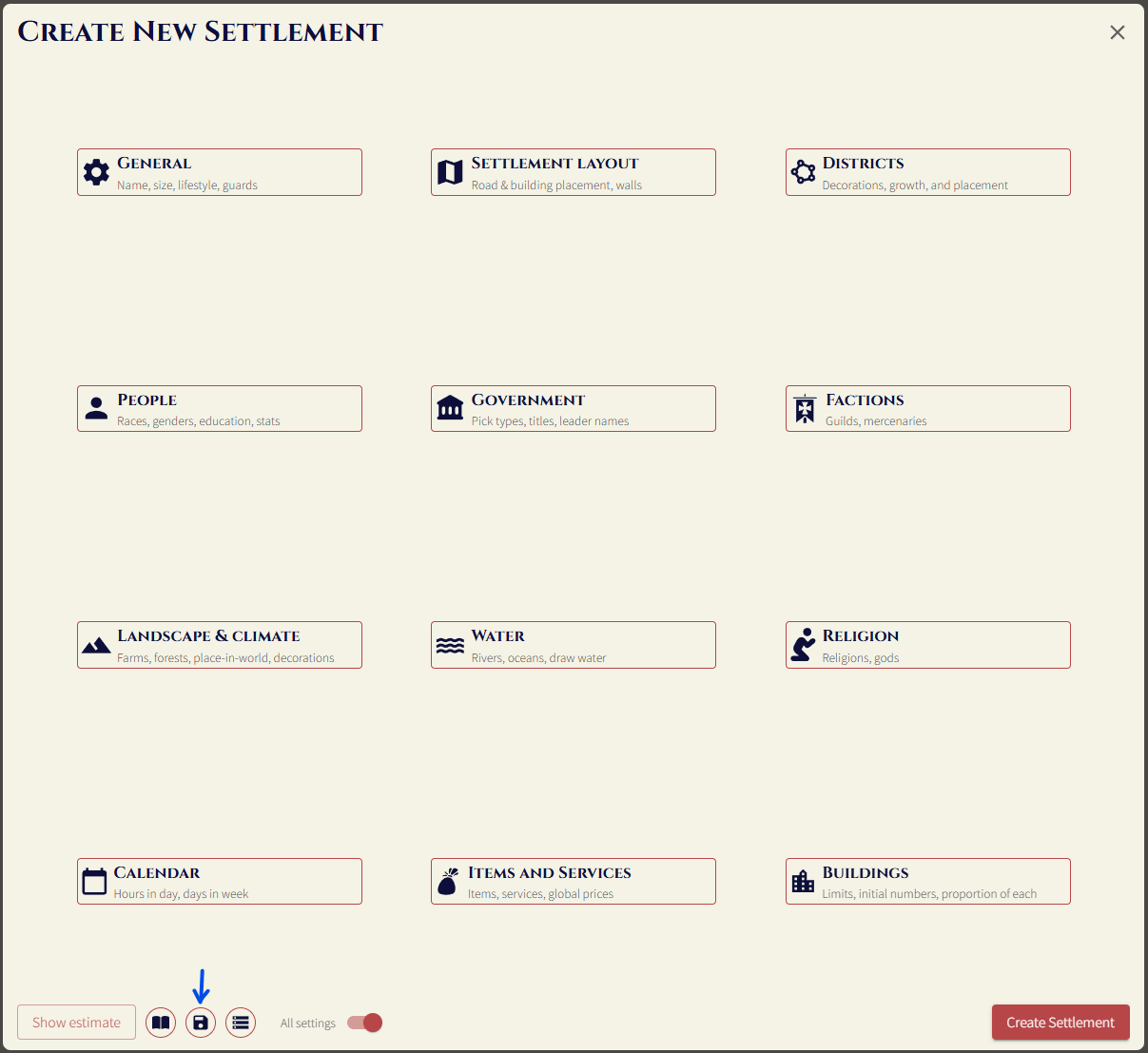
That will open the save settings menu:

Give your settings a memorable name and then select a save location – the options are:
- Local storage
- Cloud
You can download the settings as a file later.
Next, select the sections you want to save (these broadly correspond to the top-level folders in the create settlement form). When you later load the settings, only the selected sections will overwrite the current form state.
For example, if the current form state was something like:
Races: [A, B, C], Layout: [Medieval Europe, ...]
And you have a saved settings file that only includes the "Races" section, and load that, the new form state would be something like:
Races: [D, E, F], Layout: [Medieval Europe, ...]
aka the layout section remains unchanged.
Load / manage saved settings
In the create settlement form, click the "Load saved settings" button:
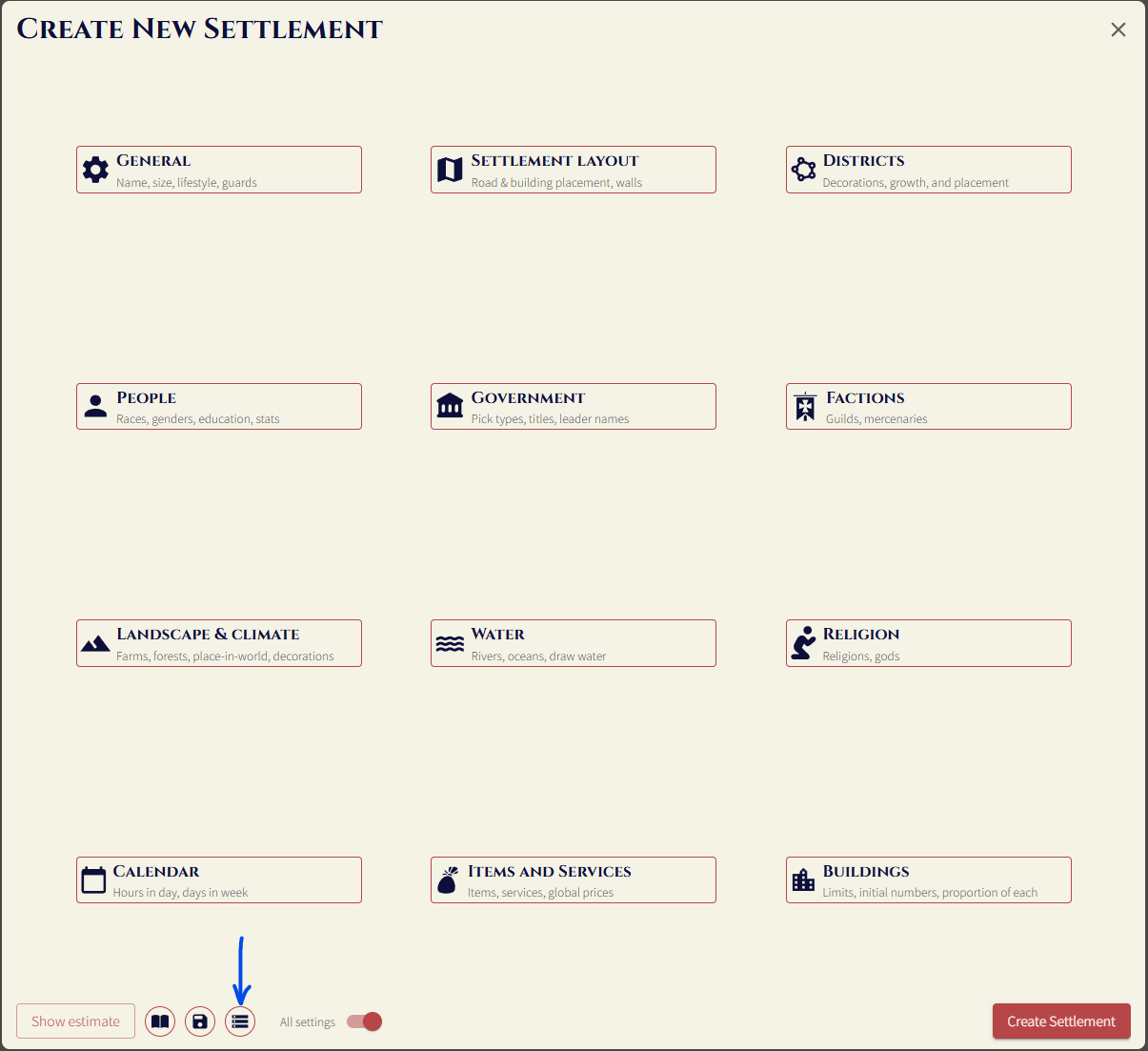
That will open the load settings menu:

The settings that appear here are the ones that are saved in local browser storage, or ones that are stored in the cloud (denoted by the cloud icon).
Clicking on a row will load those saved settings into the form. Pressing the download button will download the settings as a file. Pressing the delete button will delete the settings from local storage or the cloud.
You can press the upload from file button to upload a settings file that you previously downloaded – this will be uploaded to local storage.